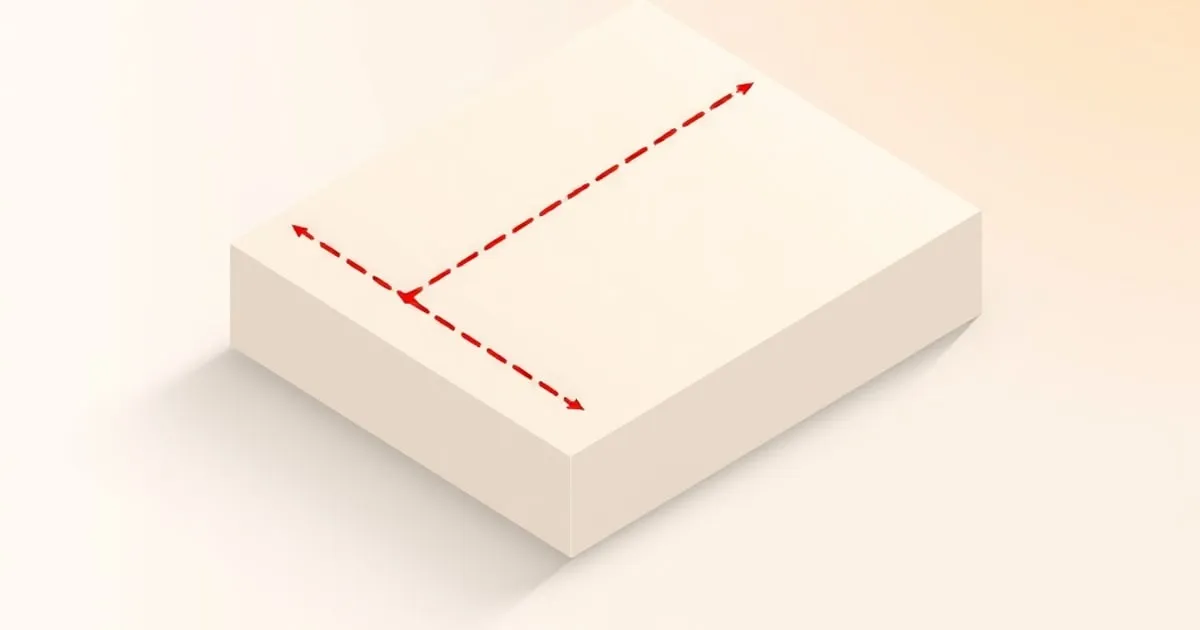
Seam Placement: How to Hide the Z-Seam on FDM Prints
Every FDM print has a seam where each layer starts and ends. A practical breakdown of the seam-placement options in PrusaSlicer, Bambu Studio, OrcaSlicer
Every FDM print has a Z-seam. It’s the vertical line where each perimeter layer starts and ends — physically unavoidable on a printer that lays down filament continuously and has to begin and end somewhere. What you can control is where the seam ends up, and whether it ruins an otherwise-clean print or hides where nobody will look.
This is one of those settings where the defaults are reasonable, but understanding the modes makes the difference between “good enough” and “I have to point it out for people to notice the seam.”
The four common seam modes
All major slicers offer roughly the same set of options, even though they use different names for them.
| Slicer | ”Hide in corner" | "Random" | "Align” / “Aligned" | "Rear / Custom” |
|---|---|---|---|---|
| PrusaSlicer | Nearest (sharpest concave) | Random | Aligned | Rear |
| Bambu Studio | Aligned (default) | Random | — | Back / Painted |
| OrcaSlicer | Aligned | Random | Aligned (closest) | Back / Painted |
| Cura | Sharpest Corner | Random | Shortest | User Specified |
The four real modes:
- Sharpest concave corner. The slicer looks for inward-facing corners on each layer and starts the perimeter there. Concave corners hide seams because the surrounding geometry shades and obscures the start/end ridge.
- Random. Each layer starts at a different randomized position. This scatters the seam into a diagonal texture instead of stacking it into a visible vertical line. No single layer hides the seam — instead the eye doesn’t see a coherent line.
- Aligned / nearest. The slicer stacks the seam at roughly the same XY position on every layer, optimizing for travel-distance efficiency. Bad for visibility, good for print time.
- User-specified / painted / rear. You tell the slicer where to put the seam. Most slicers offer “painted seam” tools where you draw a vertical strip on the model. Rear is a quick approximation that biases the seam toward the back of the part.
When to use each mode
Sharpest corner (default for most prints)
This is the right default. If your model has any pronounced corners — a printed enclosure, a bracket, a faceted miniature — the seam will hide cleanly in a concave intersection. The seam ridge gets visually absorbed by the geometry change.
It fails on:
- Smooth cylindrical or organic shapes (vases, figurines, smooth columns) where there are no corners for it to find.
- Slightly-faceted-but-mostly-smooth shapes where the slicer picks a “corner” that’s only marginally more concave than the surrounding wall — you get a seam in a near-flat area instead of a corner.
Random (use for smooth/organic shapes)
For organic shapes — figurines, vases, columns, anything spinning-symmetric — Random is the better choice. The seam still exists physically, but spreading it across all layers turns it into a diagonal texture rather than a vertical scar.
The trade-off is travel time. Random forces longer travel moves between perimeters, and on multi-perimeter prints you’ll see a small print-time penalty (commonly reported in the 1–5% range by slicer documentation and community benchmarks).
Don’t use Random on prints with sharp corners — you’ll get a seam exiting through a corner edge at a random height, which looks worse than aligned.
Aligned (rarely the right choice)
Aligned seam wins on print time. It loses on appearance. You get a vertical line of overextrusion ridges stacked at one position, visible from across the room on solid-colored prints.
Use Aligned when:
- You’re prototyping and don’t care about appearance.
- The print will be post-processed (sanded, painted, vapor-smoothed) and the seam will be eliminated anyway.
- You’re specifically positioning the seam where it won’t be seen (against a wall, on the bottom of a bracket).
Painted / user-specified (use on hero prints)
For anything you actually care about — a gift, a display piece, a finished product — paint the seam manually. You decide which side faces away from the viewer, paint a vertical strip there, and the slicer will start every layer along that strip.
The painted-seam tools in Bambu Studio and OrcaSlicer are essentially identical and very usable. PrusaSlicer’s painted-seam tool works the same way.
This is the only mode that gives you reliable, repeatable seam placement on smooth shapes.
Seam-affecting settings that aren’t the seam mode
Even with the right mode, the seam can still look bad if other settings are wrong:
Wipe / retraction at layer start
The first millimeter of each perimeter is where the seam ridge forms. If you retract too little, you over-extrude at start and create a blob. If you retract too much and don’t compensate on un-retract, you start with a gap.
Tuning:
- Bambu Studio: “Wipe before retraction” + “Wipe distance” should be enabled. Default 2 mm wipe is fine.
- PrusaSlicer: “Wipe while retracting” enabled. “Avoid crossing perimeters” enabled.
- OrcaSlicer: Same as Bambu Studio. “Wipe before retraction” on.
Outer/inner wall order
Printing outer walls first leaves seams more visible because the seam-side of the outer wall is exposed to view. Printing inner walls first hides the seam slightly — the outer wall starts and ends against an already-printed inner wall surface that supports it.
Default in most slicers is inner-first. Don’t change it unless you have a reason.
Coasting / pressure advance
If your printer is well-tuned with input shaper and pressure advance, the seam blob caused by extrusion-pressure release at layer end largely disappears. This is the biggest win for seam quality and it has nothing to do with the seam mode itself.
If your seams look like blobs on a properly-configured printer, the issue is pressure advance, not the seam-placement setting.
A quick recommendation tree
- Print has sharp corners → Sharpest corner / Nearest.
- Print is smooth / organic → Random (for prototypes) or Painted (for hero prints).
- You’ll post-process the part → Aligned (fastest).
- You care about how it looks → Always paint the seam.
Cross-references
Seam blobs are most often a pressure-advance calibration problem, not a seam-mode problem — the flow and temperature calibration guide and troubleshooting print defects both cover this directly. For the other most-visible surface, the ironing guide covers flat-top finish, and OrcaSlicer’s painted-seam workflow is detailed in OrcaSlicer features worth knowing.
For overhang and cooling settings that interact with seam quality on slow-cooling materials, FDM Desk ↗ covers material-specific cooling profiles. The tree supports configuration guide earlier on this site covers the related question of support seams, which are governed by separate settings.
For more context, Bambu Lab printer reviews ↗ covers related topics in depth.
Related
PrusaSlicer vs OrcaSlicer vs Bambu Studio vs Cura
Four slicers cover almost every FDM workflow in 2026. A practical comparison of how PrusaSlicer, OrcaSlicer, Bambu Studio, and Cura differ in lineage

Lightning Infill: How It Works and When to Use It
Lightning infill is the fastest infill pattern in modern slicers — but it's not a universal default. A breakdown of how it differs from gyroid, cubic, and
Ironing: How to Get Glassy Flat Top Surfaces
Ironing smooths flat top surfaces by re-running the nozzle over them with a trickle of filament. How it works, the four settings that control it, and when